

How to reset your password in Virtual Tours Creator
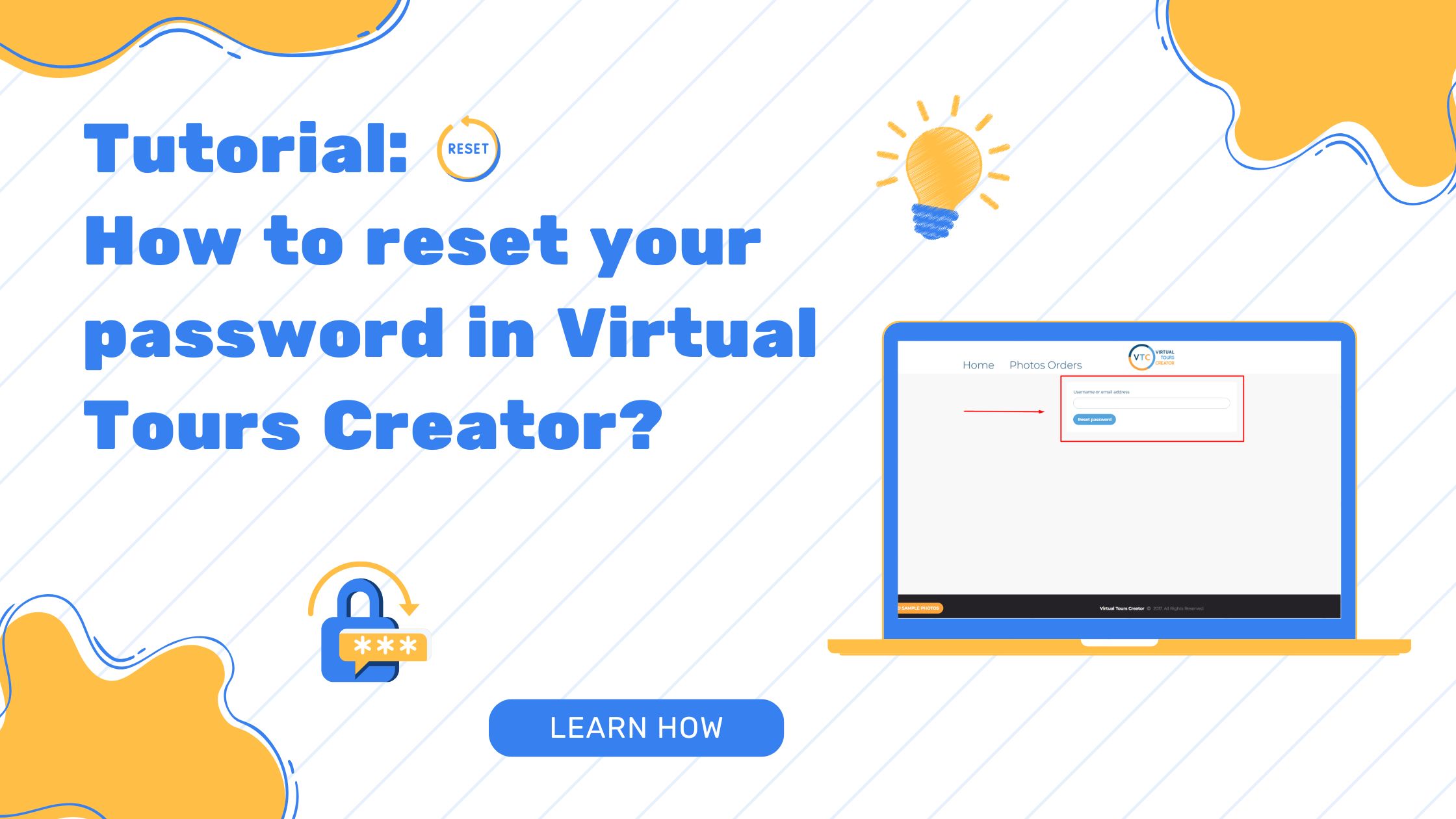
Forgetting your password can be frustrating, but resetting it is a straightforward process. Follow these simple steps to regain access to your account on the VTC (Virtual Tours Creator) website.
Step 1: Access the Password Reset Option
- Go to the VTC Website
Begin by opening your web browser and navigating to the VTC website. Ensure you are on the official site to avoid any security risks. - Find the “Forgot Password” Link
On the login page, you’ll see a link labeled “Forgot Password” just below the login button. Click on this link to start the password reset process.
Step 2: Enter Your Email or Username
- Provide Your Information
You will be prompted to enter either your email address or username associated with your account. Make sure to use the correct email or username that you registered with. - Click “Reset Password”
After entering your information, click on the “Reset Password” button. This will send a request to initiate the password reset process.
Step 3: Check Your Email
- Look for the Reset Email
Check your email inbox for a message from VTC that contains a link to reset your password. If you don’t see it in your inbox, be sure to check your spam or junk folder as well. - Open the Reset Link
Click on the link provided in the email. This will direct you to a page where you can set a new password.
Step 4: Create a New Password
- Enter a New Password
On the password reset page, you’ll be asked to enter your new password twice. Choose a strong password that includes a mix of letters, numbers, and symbols to ensure it’s secure. - Click “Change Password”
Once you’ve entered and confirmed your new password, click the “Change Password” button to save it. Your password will be updated, and you can now log in with your new credentials.
Important Notes
- Password Reset Limit
You can only request a password reset once every 2 hours. If you need to reset your password again within this timeframe, you will need to wait. - Email Delivery Issues
If you do not receive the reset email, ensure that you’ve entered the correct email address. Check your spam or junk folder, and if necessary, request a new reset email.
Troubleshooting Tips
If you encounter any issues during the password reset process, here are a few tips:
- Ensure Your Email is Correct: Double-check the email address you used to request the reset. A typo can prevent you from receiving the reset email.
- Check Spam/Junk Folders: Sometimes, emails can end up in spam or junk folders. Make sure to check these folders if you don’t see the email in your inbox.
- Request Another Reset: If the link in the reset email does not work, you can request another password reset email. Ensure you wait at least 2 hours between requests to avoid issues.
- Contact Support: If you’re still having trouble, reach out to VTC’s customer support team. They can help you resolve any issues with your account.
Conclusion
Resetting your password is a simple process when you follow these steps. By carefully navigating through each stage, you can quickly regain access to your VTC account and continue using the services without interruption. Keeping your password secure and up-to-date is crucial for protecting your account from unauthorized access.