

How to Set Up Start Panorama in a 360 Virtual Tour
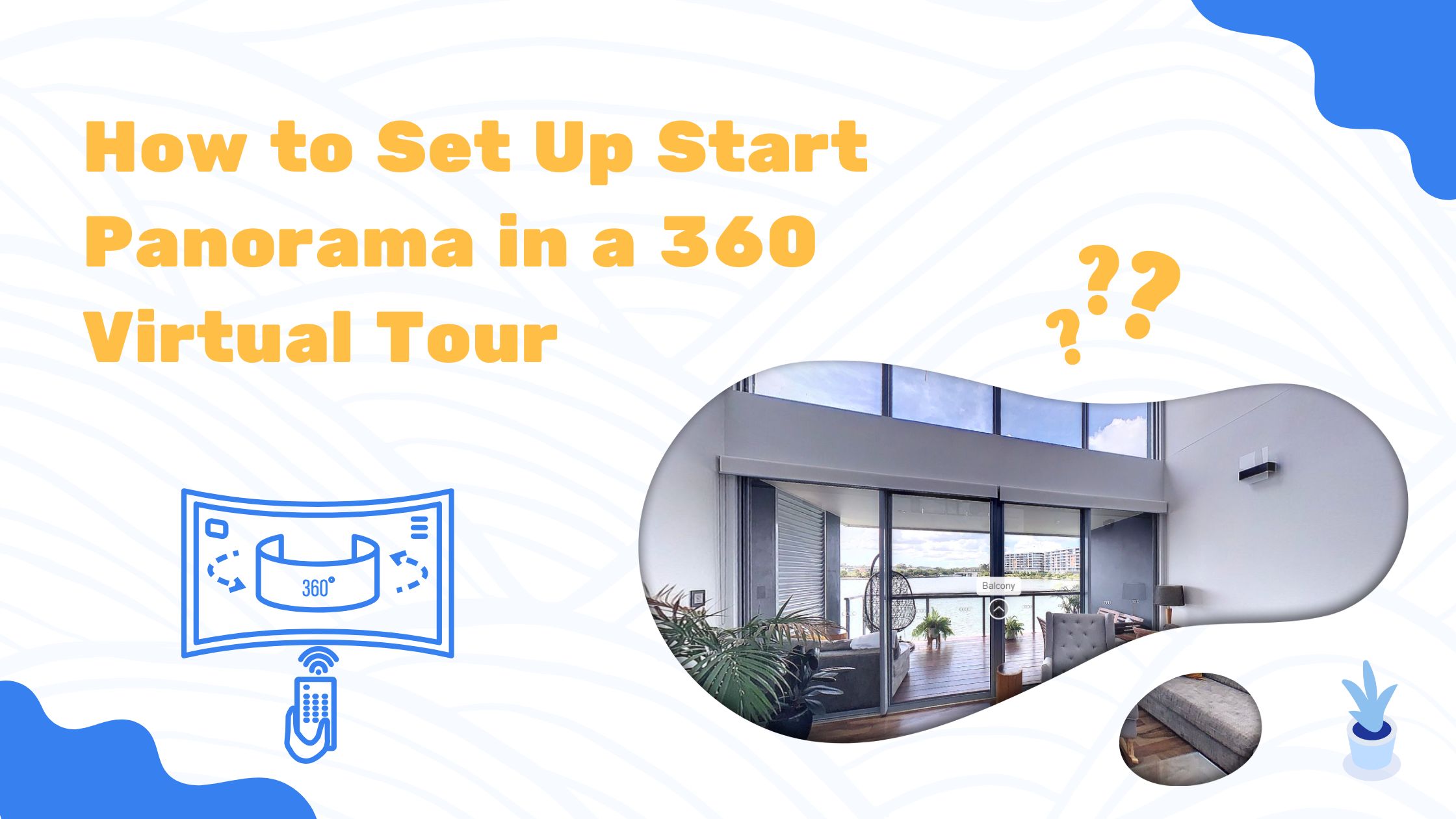
Setting up the start panorama in your 360 virtual tour is an important step that helps guide your viewers in the right direction. When someone opens your tour, the first photo they see should show off the best view of the space or give them a clear starting point. In this guide, we’ll walk you through how to set it up using Virtual Tours Creator, step-by-step. No tech background is needed—just follow along, and you’ll have it set in minutes.
Why the Start Panorama Matters
The start panorama is the first impression people get when they open your virtual tour. Whether you’re creating a tour for real estate, a school, or a showroom, this first image sets the tone. If it’s too confusing, too dark, or pointing the wrong way, your viewer might leave the tour early.
That’s why choosing the right image and making it the start point is a small but powerful feature in virtual tour software like Virtual Tours Creator. It helps you guide the visitor where you want them to begin and ensures a smooth experience from the first click.
Step-by-Step Guide: How to Set the Start Panorama
Follow these simple steps to set up the start panorama in your 360 virtual tour using Virtual Tours Creator:
-
Login to your Virtual Tours Creator account.
-
Go to the tour you are working on.
-
In your tour editor, find the photo or scene you want as your starting point.
-
Right-click on that photo thumbnail in the list.
-
Select “Set as Start Panorama” from the menu that appears.
-
The system will mark that photo as the first view your viewers will see.
-
Click the “Preview” button at the top of the editor to check how it looks.
That’s it. Your selected scene is now the start of the virtual tour. Simple, fast, and effective.
Tips for Choosing the Best Start Scene
-
Choose a bright and welcoming view: Natural light always looks more inviting.
-
Make sure the room is tidy and staged well: First impressions count.
-
Face the right direction: Angle the photo so the viewer looks into the space, not at a wall or door.
-
Highlight key features: If you’re selling a home, show off the living room or kitchen. If it’s a store, show the entrance or display area.
What Happens If You Don’t Set the Start Panorama?
If you don’t set the start panorama, the system will usually default to the first photo you uploaded. That might work, or it might not. Sometimes, the default view could be a hallway, a bathroom, or even a dark corner—not ideal for engaging viewers.
Taking a few seconds to set the right photo as your start scene can make the whole tour feel more professional and polished.
Common Mistakes to Avoid
-
Forgetting to preview: Always hit the “Preview” button to make sure your changes look good before publishing.
-
Using a cluttered or dark photo: A bad first view can turn people away instantly.
-
Choosing a photo that faces the exit: It gives the feeling that the tour is ending, not starting.
How It Helps Real Estate Agents
For real estate marketing, a well-chosen start panorama can be the difference between someone clicking through or bouncing off. When you set the tour to start in the living room with beautiful staging and sunlight, you make a strong impression. This can help increase interest in the property and reduce the time it sits on the market.
Virtual tours are powerful, but they work best when you control the viewer’s journey and that begins with the start panorama.
Need More Help?
If you’re not sure which photo to use, try previewing different scenes until you find one that feels right. You can always change it later.
Visit the Virtual Tours Creator official website for full guides, updates, and support.
Final Thoughts
Setting up the start panorama in your 360 virtual tour is a small step that makes a big difference. It helps lead your viewers through the tour with clarity and confidence. Whether you’re in real estate, education, or tourism, this simple setting can make your virtual presentation more effective.
Take a few seconds to set it right, you’ll thank yourself later.